
(updated, 4/21/22)
If you made it here, welcome to the wild and wacky ways of the cloud.
You started your download, and minutes, or worse… hours later you get a message that the download has failed. Unfortunately this is a very common error, but luckily also very easy to fix.
What causes “failed” or “forbidden” downloads? The list below details some of the most common reasons for this occurrence, and ways to fix it!
- Network Issues. More than likely your network is dropping out during the download. The longer the download, the more likely this is to happen. The fix for this can be as simple as moving closer to the source of your wifi signal, or plugging directly into your router via ethernet cable.
You could use an app like NetSpot to check your connection and potentially diagnose more complex connectivity issues. It also sounds silly, but on my personal machine, I’ve even noticed a difference in stability by simply leaving the “downloads” progress menu up. Sounds crazy, but it works.
- THE WAY YOU DOWNLOADED A FILE. Under some circumstances, it could be the way in which you download that is causing an issue.
We (NXTLVL) have found that larger files (>40gbs) are best downloaded 1 at a time to ensure full download speeds and increasing the chances that individual files finish.
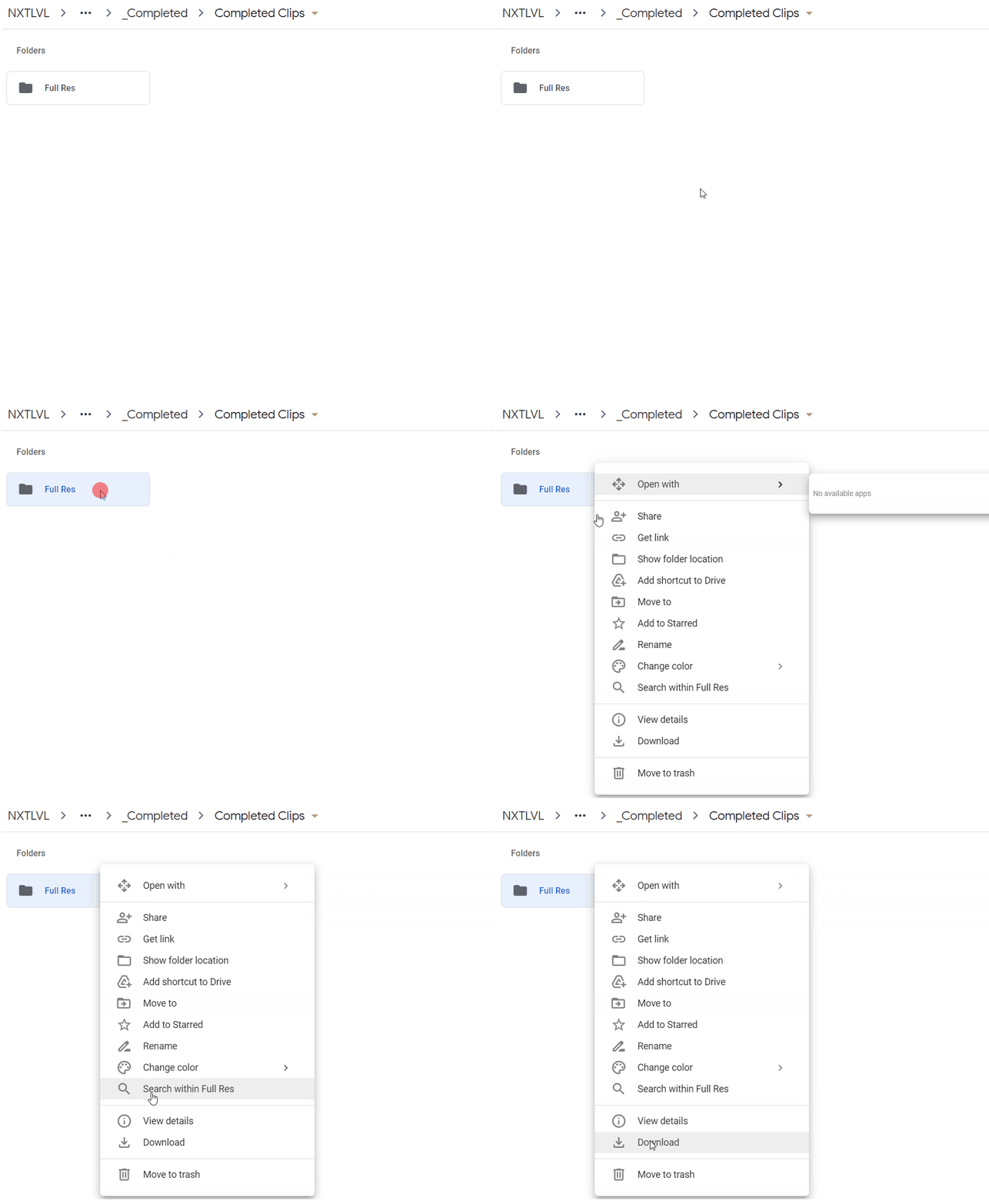
In Google Drive there are several ways to download a file. For starters, you can simply click on a file and select download. If you are downloading a folder, like in the figure below, Google will attempt to Zip (compress) the folder into a .zip archive file.
This method is likely to result in a failure if your wifi signal is week. Its also worth noting that Google drive will sometimes re-arrange the file structures that memory cards create. We don’t know why this happens, but we see this a lot with RED and Alexa footage sent via Google Drive. You can, however, reconstruct the folders manually and everything will work as intended (it’s what we usually have to do).
DOWNLOAD METHODS:
Download by right-clicking on the file or folder.
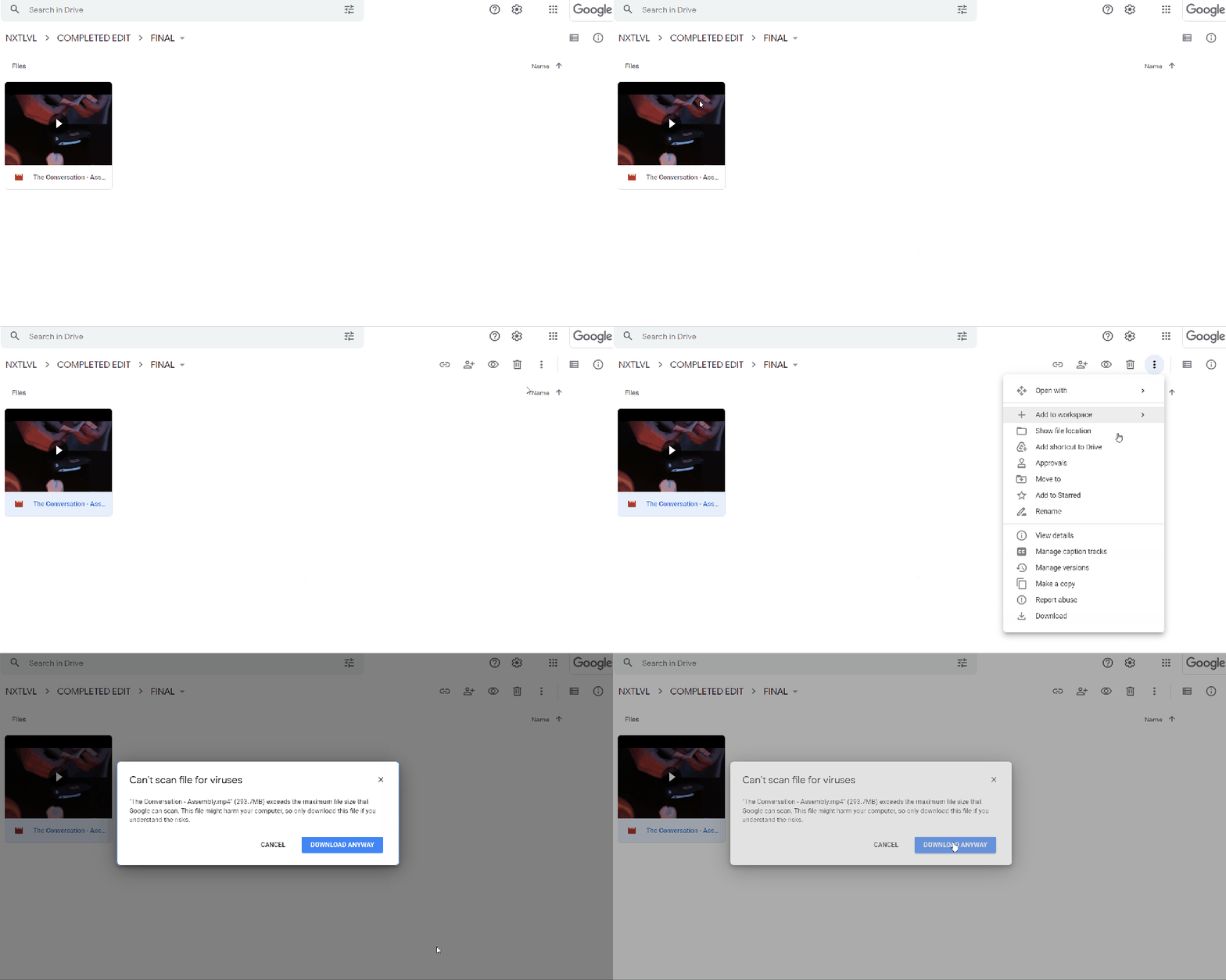
Another method that you can use is finding the “3 dots” located to the bottom left under your Google Account name.
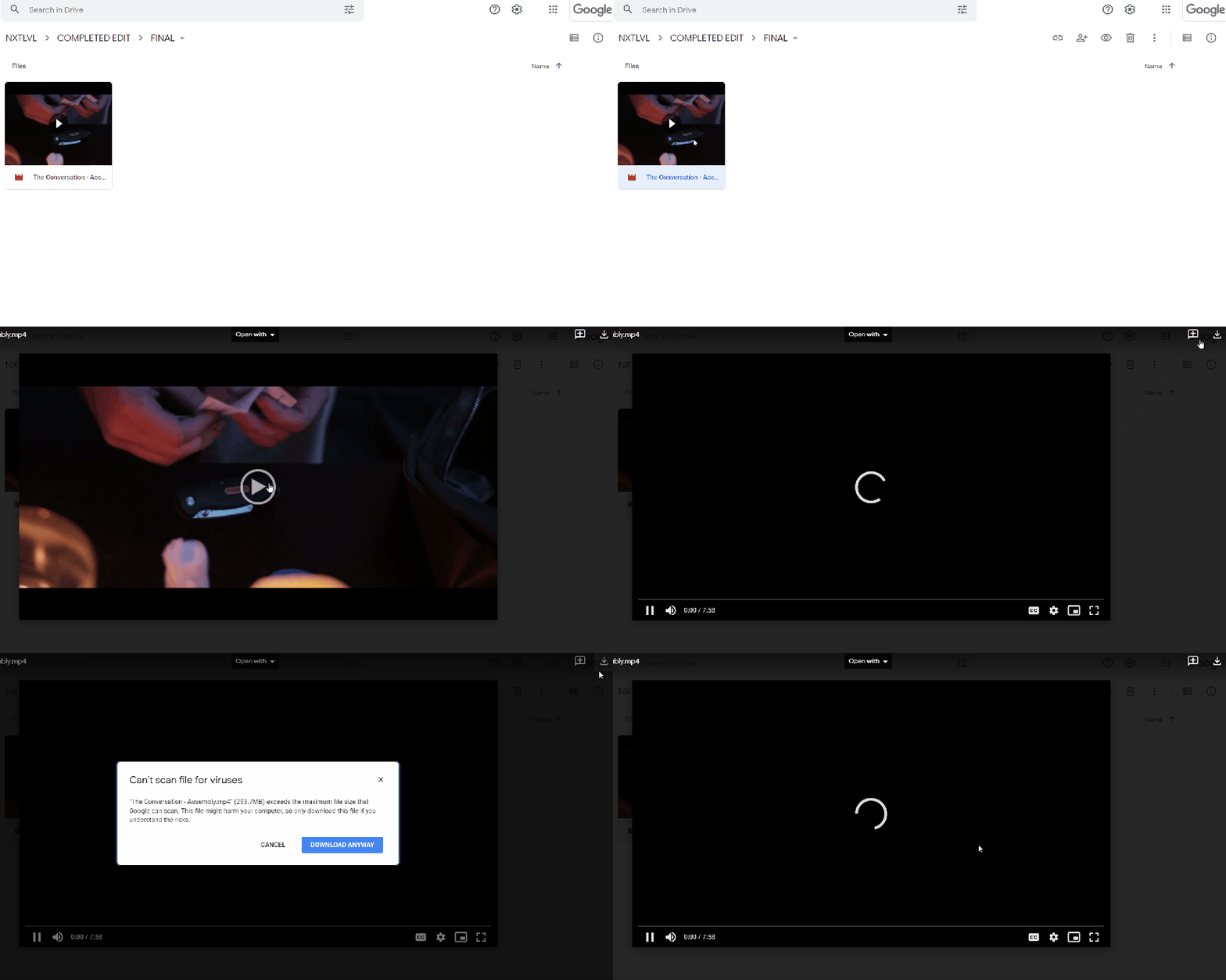
Yet another way is opening up the video, and clicking on the download icon, located in the area of the “3 dots”.
Each of these ways appear to work slightly different under the hood. So from a programming perspective, if one way appears to work better than every other way on your device, stick with that way as a primary option.
- Security Issues. Especially when using a VPN, Google may think unusual activity is coming from your machine on a large download and will stop the download. You may be asked to verify who you are via your backup email address.
It could be worthwhile checking the settings on your firewall or antivirus software if the above isn’t the issue. Every antivirus software is different, but you see something like “HTTPS Scanning or Encrypted connection scanning“. Uncheck it until your downloads complete.
- Browser Issues. Google’s native browser, Chrome, is problematic. It’s also heavy on machines. As a result we primarily use Firefox and Brave. Brave is our preferred in-house browser of choice for many reasons. At it’s core, brave blocks trackers and ads, saving you significant bandwidth overtime.
When testing this ourselves we achieved an extra 3.5 – 5.5 mbs average wifi Send & Receive speeds, allowing for faster uploads AND downloads. Its streamlined functionality allows for quick, reliable results.
If switching browsers isn’t an option, its possible to download without having a google account by using the “incognito / private” modes on your current browser. This will provide a more streamlined experience that won’t throttle your downloads as much.
If this still doesn’t work, you could also clear your browser cookies and cache. This works 20% of the time, right away.
- Power Settings. This one is a no-brainer, but if your estimated download times exceeds the time allocated for your computer to stay on before going to sleep, or powering off… you will simply need to adjust this number to accommodate the download.
- Memory Issues. This is a simple one, but you may be low, or out of memory. Typically you will get a notification if that’s the case. If you have a lot of processes running on your device, you may also be bottlenecked with the mount of virtual memory available to you…especially if you are on an older device.
____________________
There are also MANY OTHER issues that can arise if none of these solutions resolve your issues. If you are operating on an older Operating System, it would be best to download Google’s Desktop App for the most optimum results.
We at NXTLVL can backup and convert your files for you if all else fails! You may also want to look into Google alternatives such as CBackup.
 NXTLVL Interactive