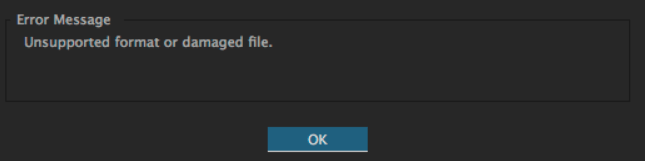

Even in 2022, we often run into bugs in commonly used commercial softwares that seem somewhat unexplainable. The fact of the matter is, a lot goes on under the hood to do even the simplest operations when it comes to video editing and transcoding. Let’s jump right in.
TO START: The most common issue for R3D files not showing up is incompatibility issues with the Red raw codec on your computer. Most notably we have noticed this issue pop up a lot with the Red Komodo. You may find yourself able to edit Red Dragon or even Weapon footage just fine, but Komodo footage may behave differently. This is normal.
THE MOST COMMON FIX: Update your version of Adobe Premiere. Some of our clients have attempted to open R3D files in an older version of Adobe, in which case we have referred them to a list of supported codecs that Adobe Premiere supports.
Listed here: https://helpx.adobe.com/in/premiere-pro/using/supported-file-formats.html
80% of the time, jumping into the paid subscription model for the most recent version of Adobe will immediately remedy your issue. If this isn’t an option for you, you do have other options.
Here’s a few other ways to potentially fix this issue that we, ourselves have guided clients through… but again, check first to make sure your version of Premiere even supports the file type you are using. These issues apply to other Raw formats as well.
- Import Via Media Browser – This works 20% of the time. Red footage imports differently as clips are spanned on the budget versions of the camera (<Komodo). Simply load and import from the media browser, then browse back over to your project bin.
- Uncheck GPU Acceleration – This works 10% of the time, but as a result, your footage will play extremely slow without the help of extra processing power especially on older devices.

- Clear the Adobe Media Cache. This works about 5% of the time. Also, this is a quick fix to a variety of issues involving playback in Premiere. We typically set our machines up to automatically deleting cache files every 90 days, however adjust this to your individual needs.

- Re-encode your Red footage using RedCineX pro. This option sucks, but…it will get you a workable file minus the benefit of meta-data 100% of the time. Re-encoding to prores will get the job done.
There you have it! Of course, if you have any questions please reach out to us and we’ll be happy to help if we can!
(This article is NOT endorsed by Adobe or RED Digital Cinema)
 NXTLVL Interactive